
Planner guide
Kitchen assembly video: animation for Instagram and TikTok
The planner turns your kitchen into an MP4 in which it assembles piece by piece. Where the button is, how to pick a 9:16 or 16:9 frame and who gets it without a watermark.
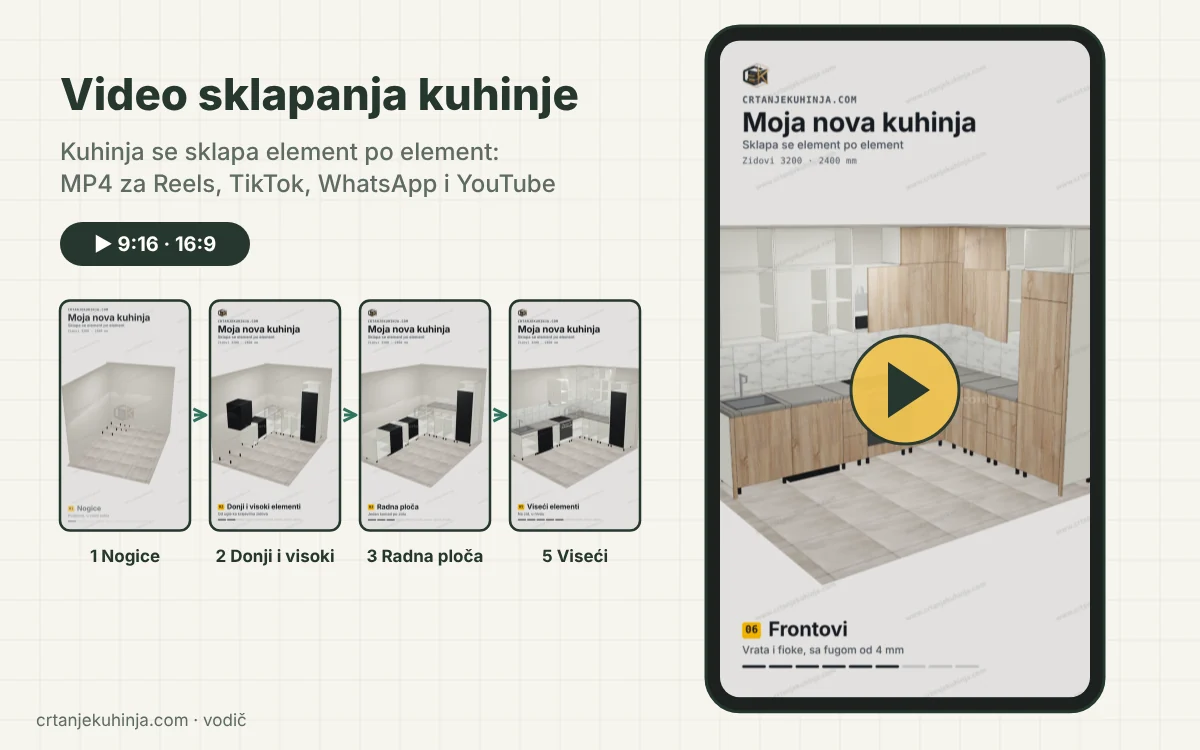
Once the kitchen is drawn, the planner turns it into a short video in which the kitchen comes together the way it does on site: legs first, then carcasses, worktop, appliances, wall units, fronts and handles. The video is an MP4, ready for Reels, TikTok, a WhatsApp status and YouTube. It helps a carpenter show the customer what they will get and win the job, and it lets a customer show off their kitchen.
Where the button is
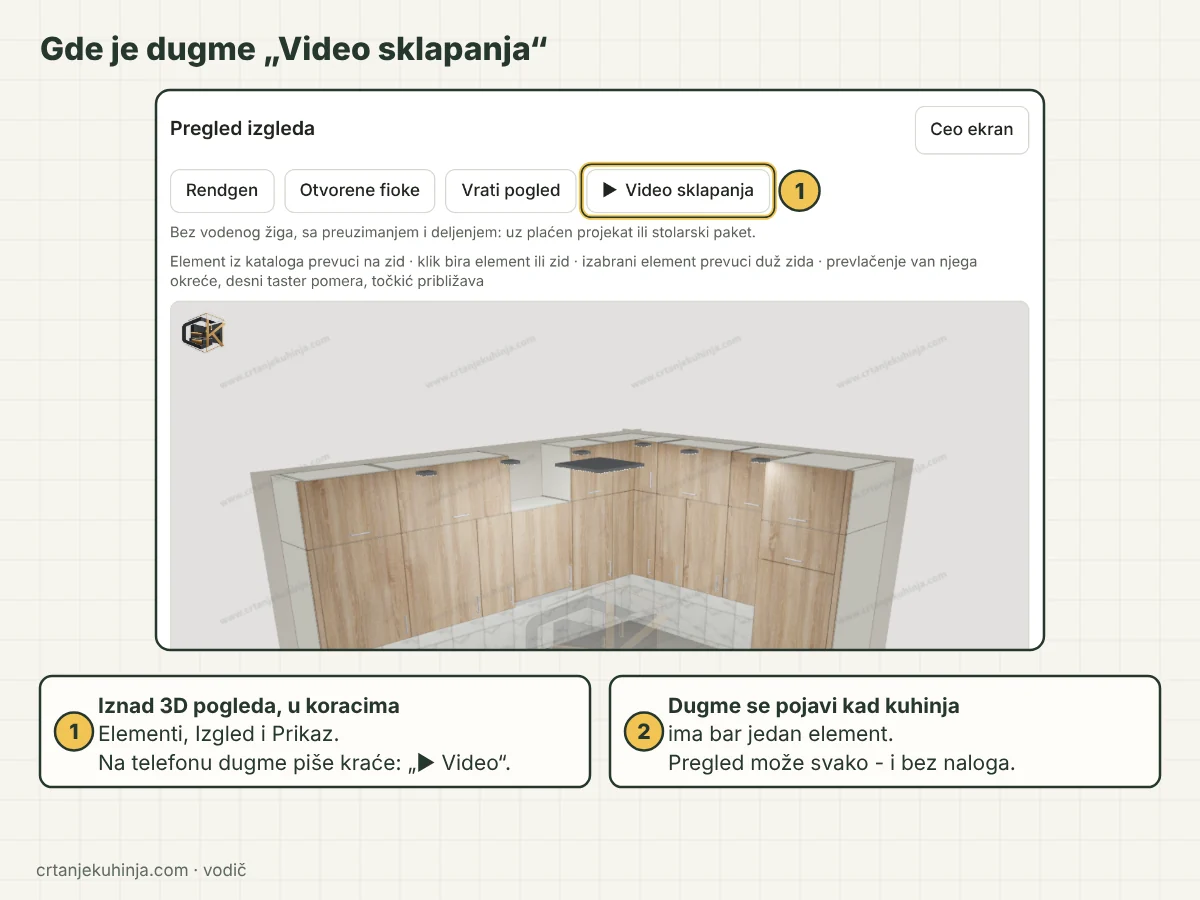
Planner, Layout step: the Assembly video button above the quick 3D view of the kitchen
- In the planner the "▶ Assembly video" button sits above the quick 3D view in the Cabinets, Layout and View steps. On a phone it is shorter: "▶ Video".
- The button appears as soon as the kitchen has at least one cabinet. Anyone can open the preview, even without an account.
- A customer who has paid for the project has the same button on the order page, and a carpenter has it in their panel, on the card of every project, next to "Copy".
Step by step
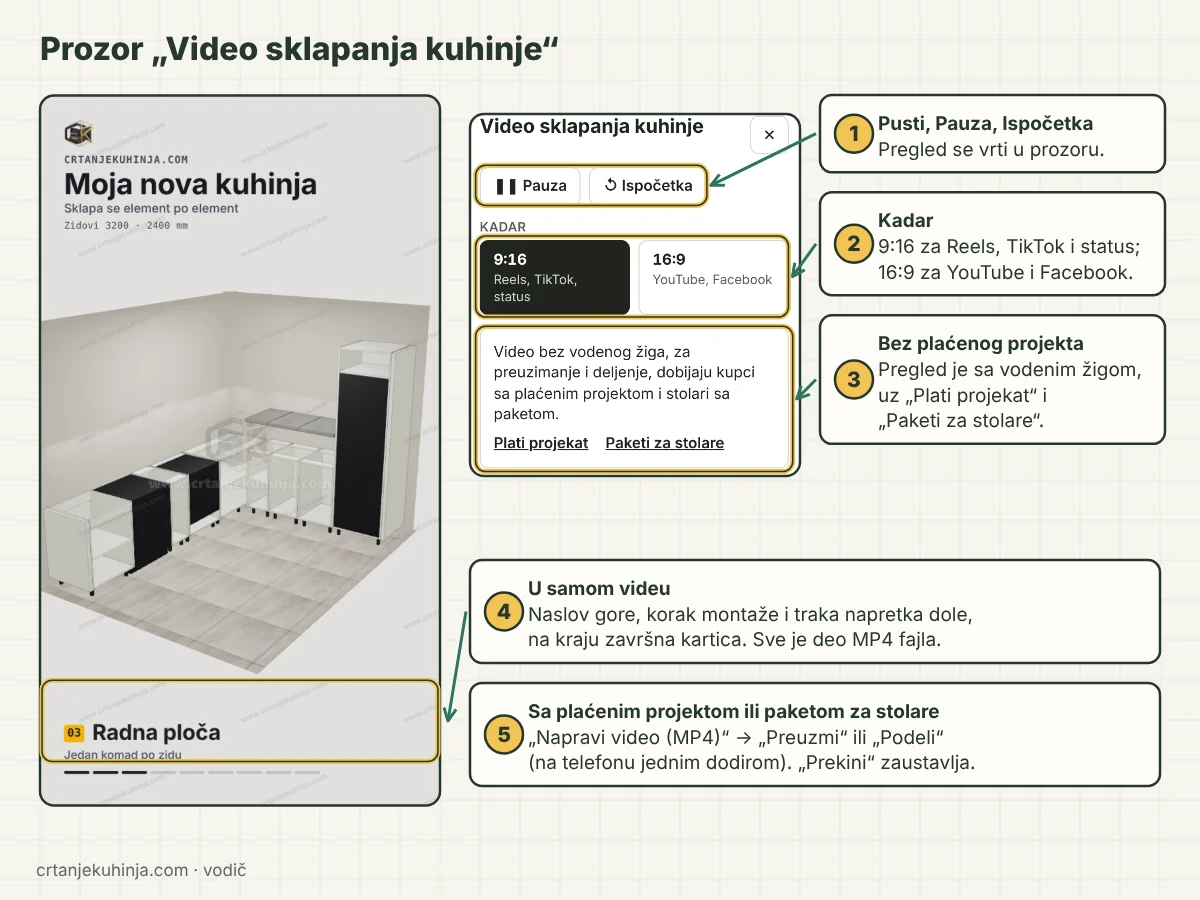
The Kitchen assembly video window: a 9:16 preview, the Pause and Restart buttons, the frame choice and the watermark note
- Open the window. Clicking "▶ Assembly video" opens the "Kitchen assembly video" window and the preview starts right away. "Pause" and "Restart" are at the top right.
- Choose the frame. 9:16 for Reels, TikTok and status; 16:9 for YouTube and Facebook. The camera and captions adapt to the frame on their own.
- Make the video. With a paid project or a carpenter package you get "Make video (MP4)". The video is made in your browser, nothing is sent to a server; a bar shows the progress and "Cancel" stops the recording.
- Share or download. When it is ready, the planner shows the length and file size and offers "Share" (one tap into Viber, WhatsApp or Instagram on a phone) and "Download".
What the video shows
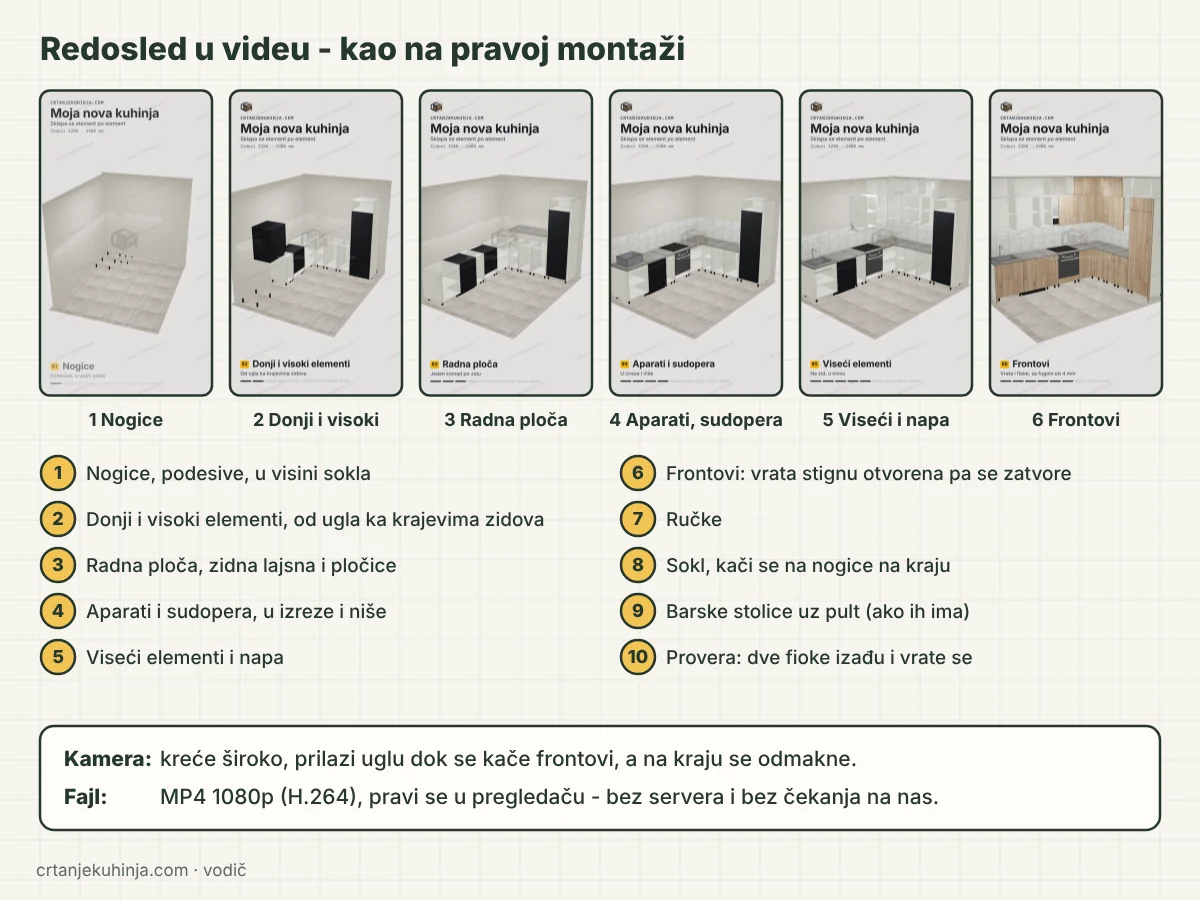
Six frames from the assembly video: legs, base and tall units, worktop, appliances, wall units and fronts
The order is the same as on a real installation:
- legs, adjustable, at plinth height;
- base and tall units, from the corner out to the ends of the walls;
- worktop, upstand and tiles;
- appliances and sink, into their cut-outs and niches;
- wall units and the hood;
- fronts: doors arrive open and then close, a drawer slides in together with its box;
- handles, then the plinth clipped onto the legs;
- bar stools at the counter, if the kitchen has them;
- a final check: two drawers slide out and back in.
The camera starts wide, moves in towards the corner while the fronts go on, and pulls back at the end. The captions are part of the video itself: a title at the top, the installation step with a progress bar at the bottom, and a closing card.
If the kitchen already has an AI image, the video opens and closes with it: the first frame is the photorealistic image, which then fades into the empty room before the kitchen assembles. That first frame is also the thumbnail WhatsApp, Viber and Facebook show when you share the video.
Who gets the video without a watermark
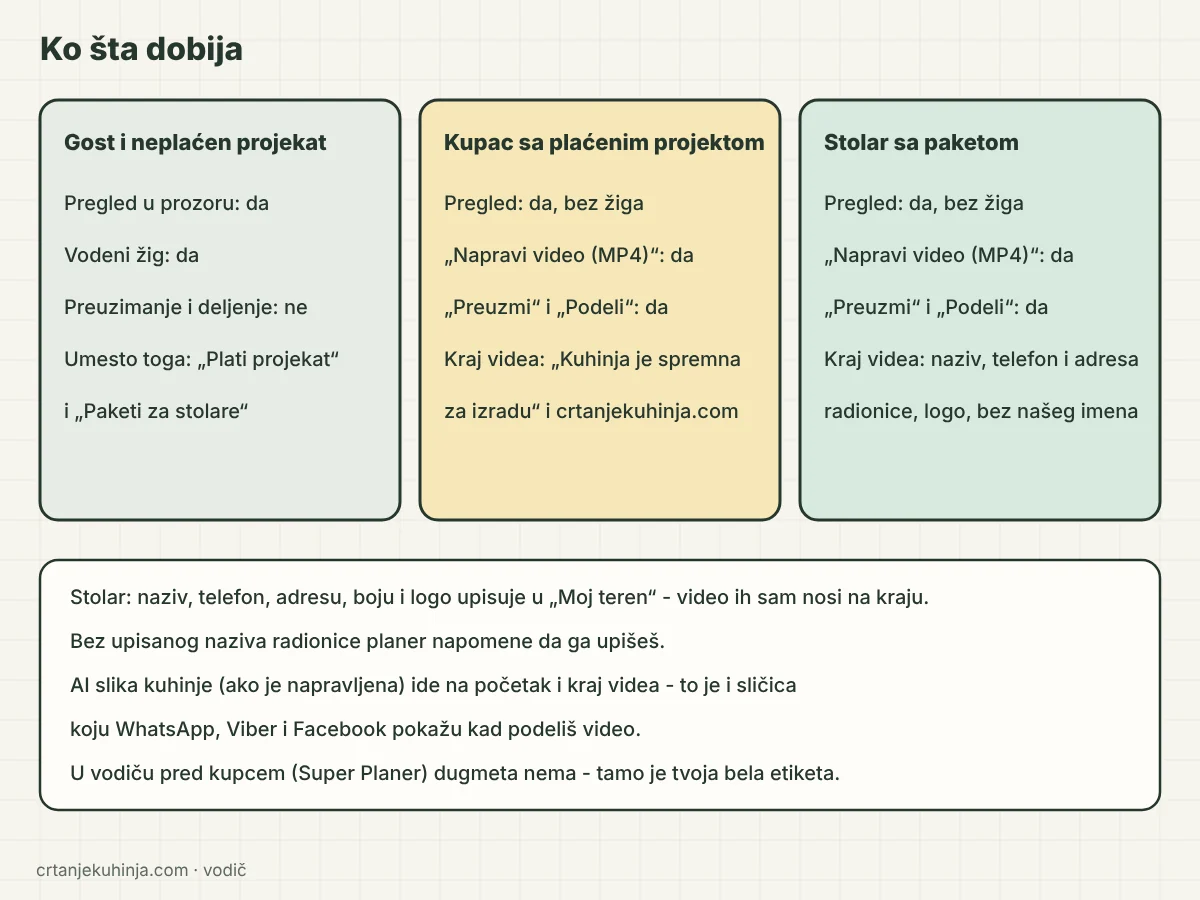
Three cards: a guest sees a watermarked preview, a customer with a paid project and a carpenter with a package get the video without a watermark, the carpenter with their own sign-off at the end
- Guest and unpaid project: the preview in the window, with a watermark. Instead of a download there are "Pay for the project" and "Carpenter packages".
- Customer with a paid project: the video without a watermark, download and sharing. At the end it says "The kitchen is ready to build" with a small crtanjekuhinja.com.
- Carpenter with a package: the video without a watermark, and at the end the workshop's name, phone number and address, in the workshop's colour and with its logo, without our name. You enter these in "My field kit"; until the name is filled in, the planner reminds you.
Project and package prices are on the price list, and everything about working with carpenters is on the for carpenters page.
How a carpenter uses the video
- Send it to the customer right after the first conversation, while they are still comparing quotes: they see their own kitchen, and your name and phone number at the end.
- Post it on Instagram, TikTok and Facebook. Every kitchen you draw becomes an ad, with no filming and no editing.
- In the Super Planer in front of the customer the button is not there, because that is your white label; you make the video afterwards, from your panel.
For other instructions see the video tutorials and the guides to the gola profile and bridge units. You draw the kitchen in the planner.
Frequently asked questions
Do I pay extra for the video?
No. The preview is for everyone. Customers with a paid project and carpenters with a package get the watermark-free video to download and share at no extra charge.
How long is the video and how big is the file?
It depends on the number of cabinets. When it is ready, the planner shows the exact length and size. The video is an MP4 in 1080p: 1080 × 1920 for 9:16 and 1920 × 1080 for 16:9.
Why can't the video be made on my phone?
On some devices 3D does not work, so the video cannot be made either; try a computer. Recording works in Chrome, Edge and Safari.
Can I put my workshop's logo at the end of the video?
Yes, if you are a carpenter with a package. Enter the name, phone number, address, colour and logo in "My field kit" and the video carries them at the end, without our site's name.