

Guide
A guide for carpenters and kitchen retailers
From an account to the documents for fifteen kitchens a month: how a workshop uses the planner, the packages and the documentation — step by step.
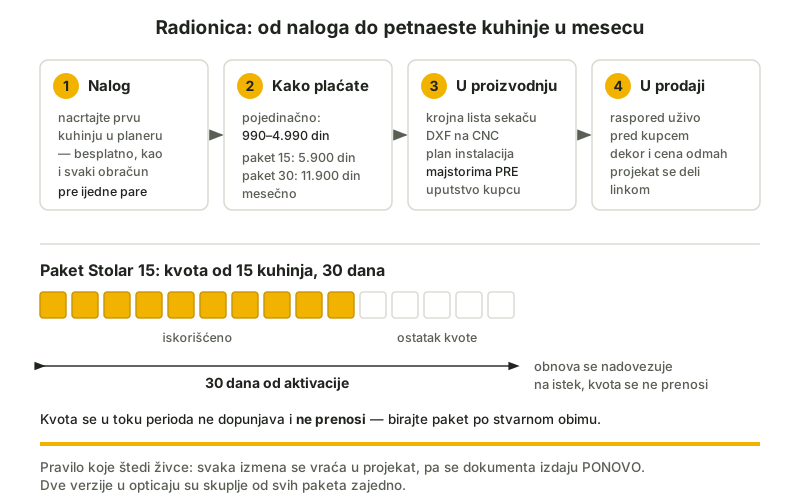
This guide is for workshops and retailers: how our planner and documentation fit into your business — from the first account to the fifteenth kitchen in a month. Why it pays off we wrote about in the article a 3D project for carpenters; here is how.
Step 1: an account and the first kitchen
Create an account and draw your first kitchen in the planner — free, as is every costing. That way you can check how the tool works with your way of working before it costs you anything.
Step 2: choose how you pay
- one at a time: for occasional kitchens, documents at price list rates — 990 to 4,990 din per kitchen
- the Stolar 15 package: 5,900 din (49 €) a month for up to 15 kitchens
- the Stolar 30 package: 11,900 din (99 €) a month for up to 30 kitchens and the Customer Quote with your logo
The package is activated when payment is confirmed and lasts 30 days; enquiries do not carry over, and a renewal follows on from the expiry date — choose the package to match your real volume.
Step 3: documents into production
For every kitchen from the quota you get: a cutting list with the edge banding marked edge by edge, CSV, DXF for the CNC, assembly instructions, an installations plan and full-resolution 3D. In practice:
- the cutting list goes to the cutter — the measurements already have the edge banding deducted
- the DXF goes to the CNC with no retyping
- the installations plan goes to the tradesmen BEFORE fitting — the outlet positions wait for the kitchen, not the other way round
- the assembly instructions stay with the customer — fewer phone calls afterwards
Step 4: the project in sales
A customer who sees their kitchen signs faster: go through the layout with them in the planner live, change the decor in front of them, show the price straight away. For premium offers, the 3D service adds 4K images.
Frequently asked questions
How is a carpenter package activated?
You choose a package, you get a proforma invoice with a reference number, and confirmation of payment activates the monthly quota on your account.
What if I use up the quota before the package expires?
The quota is not topped up during the period — the next kitchens wait for the renewal, and the renewal follows on from the expiry date. If this keeps happening, move up to a bigger package when you renew; quotas do not carry over.
Can I share the project with the customer?
Yes — the project is shared by link, so at home the customer can look through the layout and the decors you chose together.